Actual Product Screens
Explore eleven captured workspaces from the running demo.
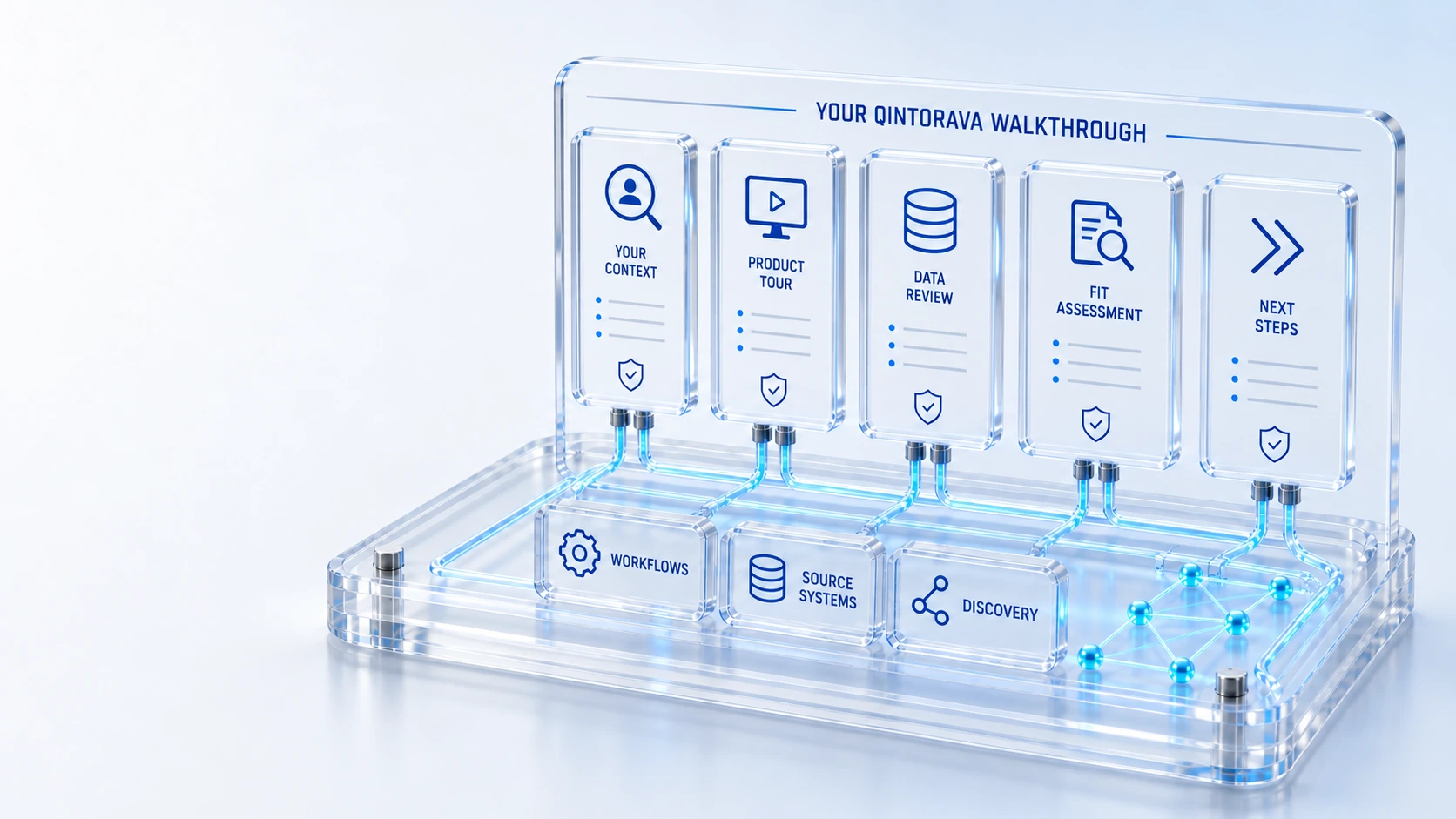
Actual Product ScreensExplore eleven captured workspaces from the running demo.
Choose Your Operating AreaInspect service, assets, cloud, customers and field work.
Follow a Connected JourneySee context travel from a case to recovery and handback.
Go Deeper with Your TeamRequest a walkthrough around your own workflows and data.
Your contextGuided review
Explore genuine screens from the running demonstration platform, then book a walkthrough around your own workflows.
Explore eleven captured workspaces from the running demo.
Inspect service, assets, cloud, customers and field work.
See context travel from a case to recovery and handback.
Request a walkthrough around your own workflows and data.
Your context → Guided review → Next step
Explore the details below, then bring your workflow, source data and questions to a guided conversation.
Inside the platform
Actual screens from the running Qintorava demonstration environment. Choose a workspace to explore.
Application access may require sign-in. Screens are captured product views, not customer performance results.
A connected service journey
Keep customer context, technical recovery and qualified field work connected without collapsing their responsibilities.
Capture the account, affected asset and configured coverage.
Link incidents and recorded outages to the affected CI.
Coordinate approved work plans, coverage and execution evidence.
Return completed work for support review and customer follow-up.
Who this is for
A screen is most useful when you know what question it can answer. The tour brings together actual captured workspaces and helps you inspect records, context and handoffs. The images are demonstration evidence, while a guided session can test your proposed roles and configuration.
Illustrative walkthrough
Begin with the hardware workspace to identify lifecycle or custody context. Then review the operational landscape or service portal to discuss the related work. Use the tour to frame questions rather than assuming a captured image is an interactive tenant.
Use the workspace tabs to change the view and enlarge a screen for a closer look. Follow the related product page to understand the records and workflows shown. These screens come from the Qintorava demo environment; bring your own workflow questions to a guided walkthrough.
Ask what record, source or relationship supports the information shown. A hardware exception, customer case and cloud plan each have different owners and prerequisites. Note the questions that a static image cannot answer, including access and live workflow behavior.
Choose a starting record, the roles to involve and the handoffs to inspect. Bring anonymized or synthetic context. Use the demo discussion to distinguish demonstrated behavior, configuration requirements, supported integrations and acceptance evidence for your scope.
For this illustrative evaluation, retain the starting records, the decisions made by each accountable role, and the evidence that supports completion. Agree the scope and acceptance criteria before interpreting a demonstration as production readiness.
Explore the platform
Open a workspace for a closer look.
Prepare the evaluation
These are evaluation criteria, not promised outcomes. Agree the baseline, scope, source coverage and acceptance method with the responsible owners before drawing conclusions.
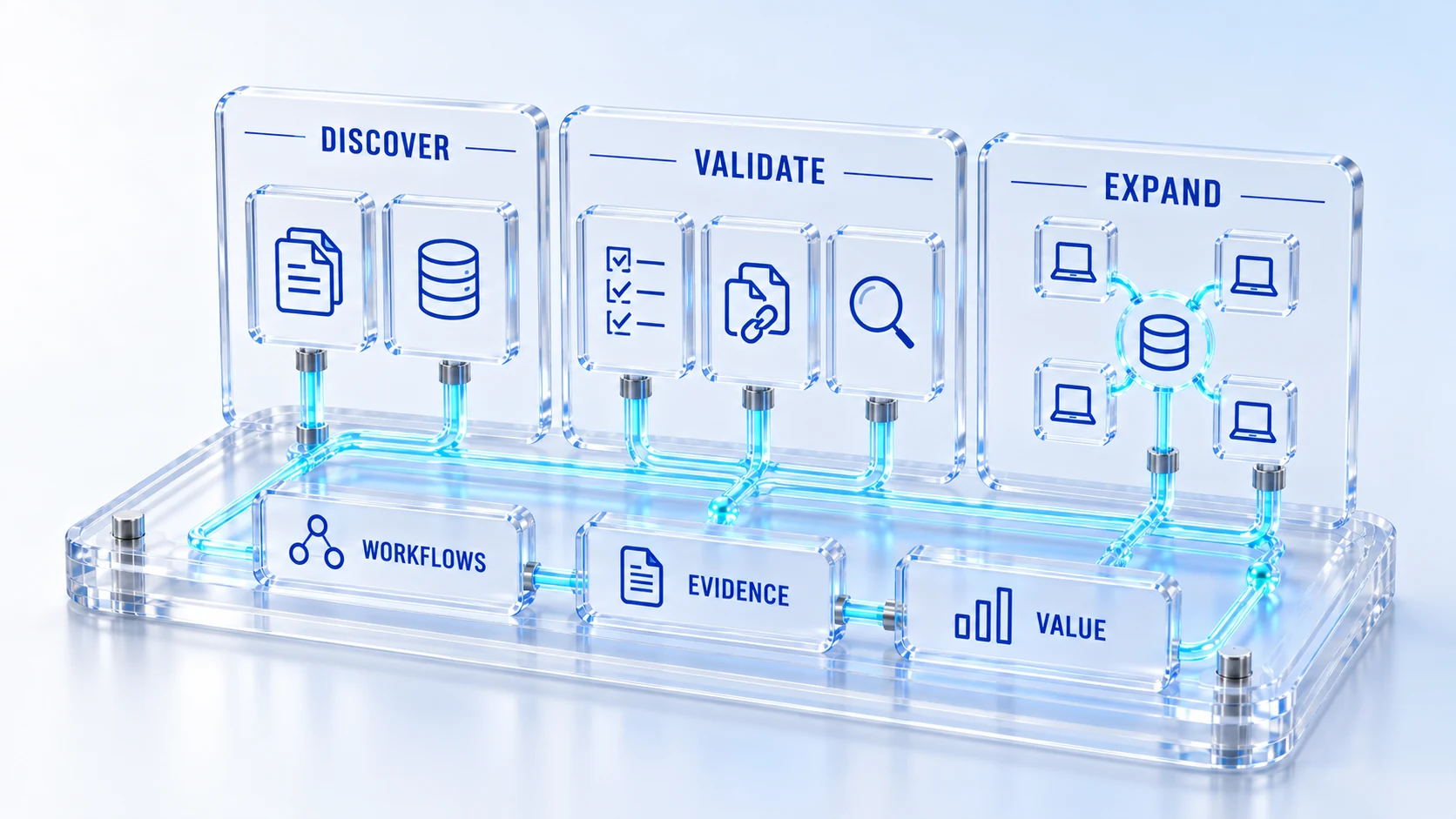
Questions for this topic
They are authentic captured screens with an enlarge interaction and clear demo provenance. They do not execute application actions. You can discuss access to the demonstration application or request a guided walkthrough for live behavior.
Available modules, roles, permissions, configuration, source data and software version affect views and actions. Use the captures as product context, then validate the proposed environment and acceptance criteria for your own requirements.
Yes. The gallery contains multiple captured operational workspaces. Choose the areas relevant to your scenario and follow the linked product pages so the walkthrough covers meaningful decisions and handoffs rather than only screen appearance.
Your next operating chapter
Bring one workflow, one service challenge or one part of your estate. We’ll show you where Qintorava fits.